



 MineStrator
A corrupted world after an update, a plugin that wipes a database, a wrong move in the console or a malicious player: it only takes one incident to lose weeks of progress on a game server. The only truly effective protection is a recent, reliable backup.
SmartBackup™ is MineStrator's automatic, smart backup system. It saves your server continuously, keeps one month of history and lets you roll back in a few clicks, without you ever having to think about it.
This guide explains why backups are essential, the three ways to back up a server, and how SmartBackup™ automates everything to keep your data safe.

Why back up your game server?
Because data loss is a question of "when", not "if". On an active server, the risks pile up: world corruption, a failed update, a configuration error, accidental deletion or a malicious act.
A recent backup turns a disaster into a simple incident. Instead of rebuilding everything, you restore the previous state and you are back up in a few minutes.
A version or modpack update that breaks the world or the plugins.
A corrupted configuration file that stops the server from starting.
An unfortunate command or deletion in the console or over SFTP.
Griefing or a hack that damages your game data.
Beyond the files, it is your time and your trust that are on the line. On a community server, losing a map or an in-game economy means risking the departure of players who invested hours into it. A solid backup strategy protects your data as much as your community.
🚨 Important: a backup is only worth something if it is recent and restorable. Keeping an old copy "just in case" does not really protect you: you need an automatic, regular system.
The three ways to back up your server
On MineStrator, you have three complementary methods, from the most manual to the most automatic.
Manual backup over SFTP
You connect to your server over SFTP with a client like WinSCP or FileZilla, then copy your server folders onto your computer. It is the most direct way to keep a local copy of your critical data. Our guide on managing your server over SFTP walks you through the steps.
Manual snapshots
From the Backup tab of the panel, you create a snapshot on demand and name it however you like. It stays available until your service expires and can be restored or downloaded at any time. It is the ideal option before a risky operation.
SmartBackup™, automatic backups
SmartBackup™ runs in the background and saves your server without any action on your part. It is the permanent safety net that complements the two manual methods.
Method | Trigger | Ideal for |
|---|---|---|
SFTP copy | Manual | Keeping a local copy of critical data |
Snapshot | Manual (panel) | Securing right before a risky operation |
SmartBackup™ | Automatic | Continuous, everyday protection |
What is SmartBackup™?
SmartBackup™ is the automatic, smart backup system included on every MineStrator plan. It regularly saves the state of your server and keeps one month of history, with no configuration or action required from you.
The system was completely rebuilt in early 2026: a new architecture, a clear distinction between snapshots and archives, automatic rotation and cleanup, and centralized management from the panel.
In practice, you have no backup script to schedule and no scheduled task to maintain. Where a homemade solution requires setting up a cron job, monitoring disk space and checking that backups are actually running, SmartBackup™ handles it for you, continuously and transparently.
💬 Good to know: SmartBackup™ is included on every plan, from the smallest MyBox to Pro dedicated servers. There is nothing to enable and nothing extra to pay.
How automatic backups work
SmartBackup™ automatically adjusts its frequency based on the age of your data. Backups are close together over the recent period, then gradually spread out as the days pass, so that a full month is covered without saturating disk space. This is where SmartBackup™ proves smart: it backs up more often when the risk is highest, and eases off when it is no longer needed.
In concrete terms, SmartBackup™ follows a tapering schedule over a rolling month:
Over the last 24 hours: one backup per hour, for very precise restoration in case of a recent incident.
From 1 to 5 days: four backups per day, at 00:00, 06:00, 12:00 and 18:00.
From 5 to 12 days: two backups per day, at 00:00 and 12:00.
From 12 days to 1 month: one backup per day, at 00:00.
📝 Note: this hourly cadence applies to our French locations. On international locations, SmartBackup™ captures every 3 hours.
An automatic rotation keeps the most useful restore points and clears out the oldest ones. Everything stays visible and manageable from the dedicated tab of the panel: you see the list of your backups and act on them in one click. So you never have to wonder whether a backup exists: it is there, up to date, ready to be restored.
This tapering approach is a good compromise. You keep plenty of restore points over the recent period, where you need them most, while keeping more spaced-out markers across the whole month. All of this without ever having to manage disk space or do the cleanup yourself.
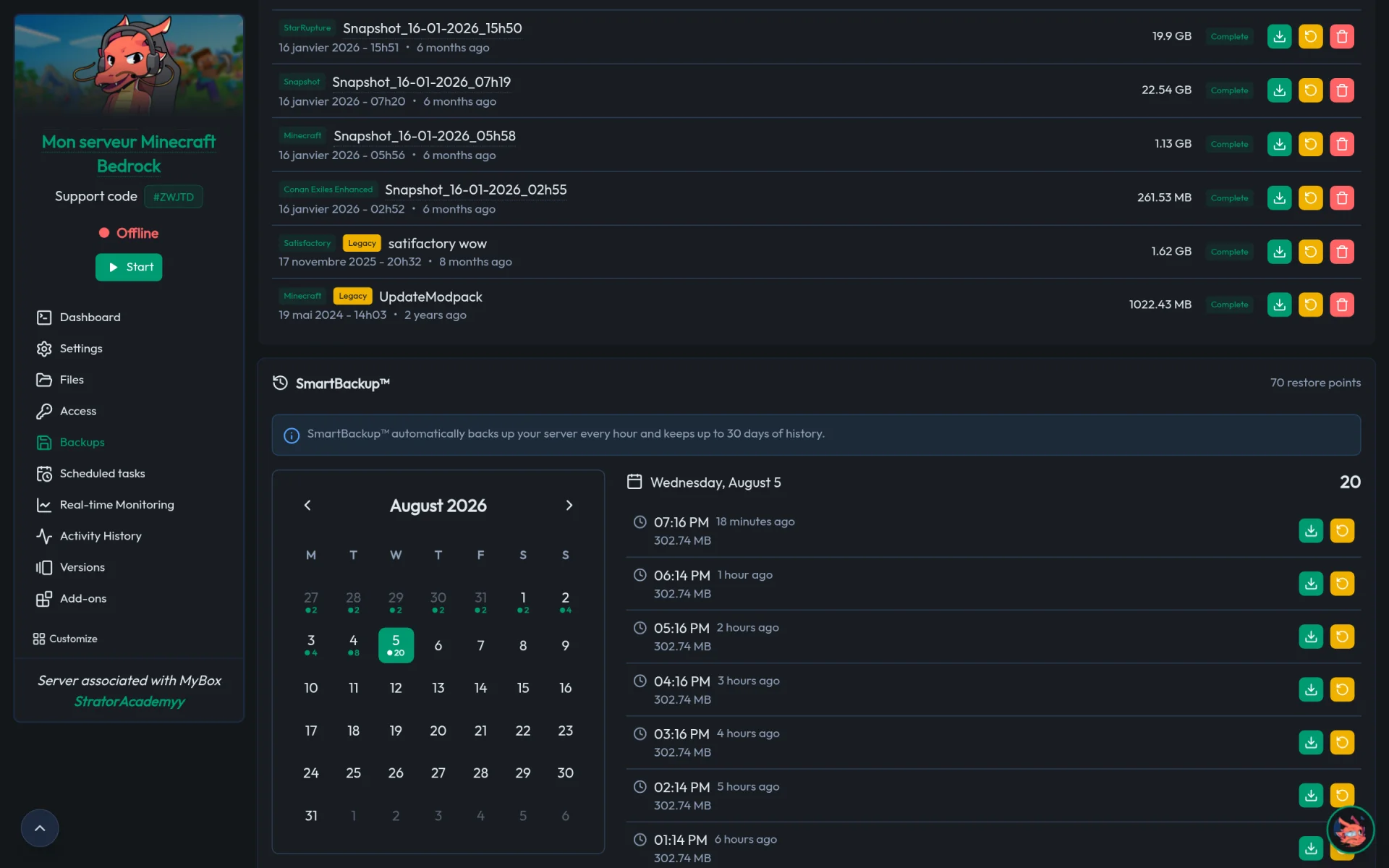
📝 Note: the history covers a rolling month. Beyond that, the oldest backups automatically make way for new ones.
How do you restore a backup?
Restoration is done from the panel by selecting the backup point you want. In a few clicks, your server returns to the saved state, with no reinstallation and no loss of configuration.
You can also download a backup to keep a copy off the server. This is exactly what saves the day when an update goes wrong: instead of redoing everything by hand, you roll back. Our guides on updating a modpack without losing your world and on downloading your server's world rely on this same logic.
Snapshots, archives and best practices
Two types of backups coexist. Snapshots are restore points, designed to quickly return to a recent state. Archives are backups kept and managed separately in the panel. SmartBackup™ handles their rotation automatically, and you find both types in the same place, with the date of each backup point.
For maximum safety, combine the approaches:
Let SmartBackup™ run continuously, it is your permanent safety net.
Create a manual snapshot right before a risky operation: a version change, a big mod, a migration.
Keep a local copy over SFTP from time to time for your most critical data.
SmartBackup™ is part of the same family of smart tools as SmartScan™, which optimizes your server's resources.
💡 Tip: before any major update, create a named manual snapshot. If the update goes wrong, you restore in one click instead of rebuilding everything.
Frequently asked questions
Is SmartBackup™ included on every MineStrator plan?
Yes. SmartBackup™ is included on every plan, from the smallest MyBox to Pro dedicated servers, at no extra cost. It keeps one month of automatic backup history, accessible from the panel.
How often does SmartBackup™ back up my server?
SmartBackup™ adapts its frequency to the age of your data: one backup per hour over the last 24 hours, then 4 per day from 1 to 5 days, 2 per day from 5 to 12 days, and 1 per day up to one month. This tapering schedule provides very close restore points over the recent period, where the risk is highest.
How long are backups kept?
SmartBackup™ keeps a rolling month of history. Recent backups are the closest together, then they spread out over time. Beyond one month, the oldest ones are automatically replaced through rotation.
How do I restore my server from a backup?
Restoration takes a few clicks from the Backup tab of the panel: you choose the point you want and the server returns to that state, with no reinstallation. You can also download a backup to keep it off the server.
Do I need to configure or enable SmartBackup™?
No. SmartBackup™ is automatic and active by default: it backs up your server without any action on your part. You can additionally create manual snapshots on demand before a risky operation.
What is the difference between a snapshot and SmartBackup™?
SmartBackup™ performs automatic backups continuously. A snapshot is a backup you trigger manually, name yourself and that stays available until your service expires. Both can be restored or downloaded from the panel.
Conclusion
On a game server, backups are not optional: they are what separates a minor incident from a permanent loss. Between manual SFTP copies, on-demand snapshots and automatic backups, you have what it takes to protect your data at every level.
With SmartBackup™ included on every plan, MineStrator automates this safety net: one month of history, restoration in a few clicks and no configuration to manage. You keep your peace of mind while the system protects your server.
Want to try it yourself? Spin up a server with the free 12-hour trial, no credit card required. SmartBackup™ then comes included on every MyBox plan, protecting your data automatically from day one.