 MineStrator
Hello and welcome to this tutorial which will explain how to install and configure the Simple Voice Chat tool on your server.
1 - Installation
If you are installing the plugin, you need to download the plugin and then drag it into the /plugins/ folder of your server. We have a detailed tutorial on this subject right here: our forum guide: install plugins
If you are installing the mod, you need to download the mod (FORGE version, FABRIC version) and then drag it into the /mods/ folder of your server. We have a detailed tutorial on this subject right here: our forum guide: install mods
Once the plugin or mod is on your server, start it. This will allow the plugin or mod to create the necessary files and folders for its configuration. Then, shut down the server so that you can configure VoiceChat without any issues.
2 - Configuration
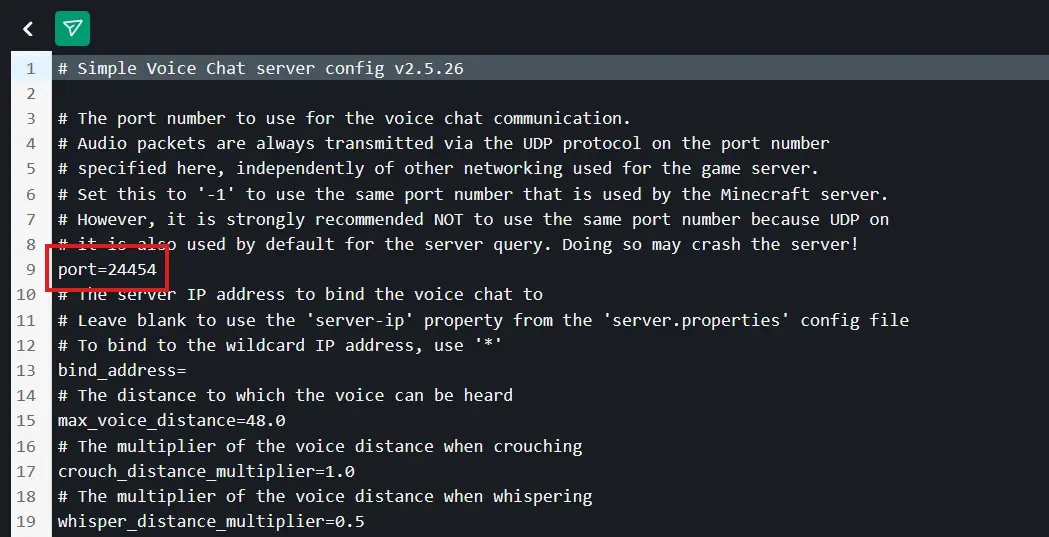
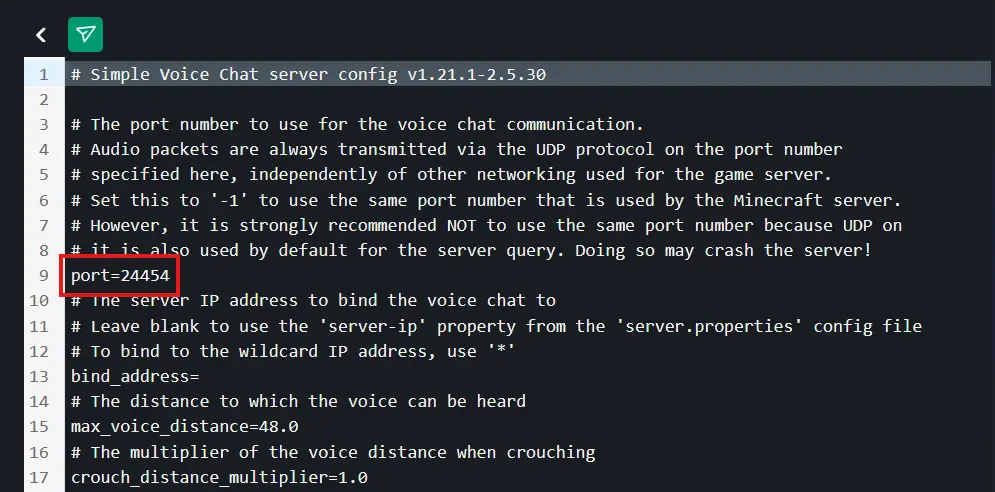
The configuration is very simple. You just need to open the configuration file and modify the "port" line to put one of your server's Dedicated Ports.
Depending on the version of the plugin, the configuration file is located in different places, but the modification remains the same.
You can access these files through WebFTP on your panel.
In the Plugin version, the configuration file is located in /plugins/voicechat/voicechat-server.properties
Here is what your configuration file should look like in Plugin format:
In the Forge or Fabric mod version, the configuration file is located in /config/serverconfig/voicechat-server.toml
Here is what the file should look like:
Once you have the configuration file open, replace the port with one of your Dedicated Ports. You can find one of your dedicated ports on your panel in the "Access" tab:
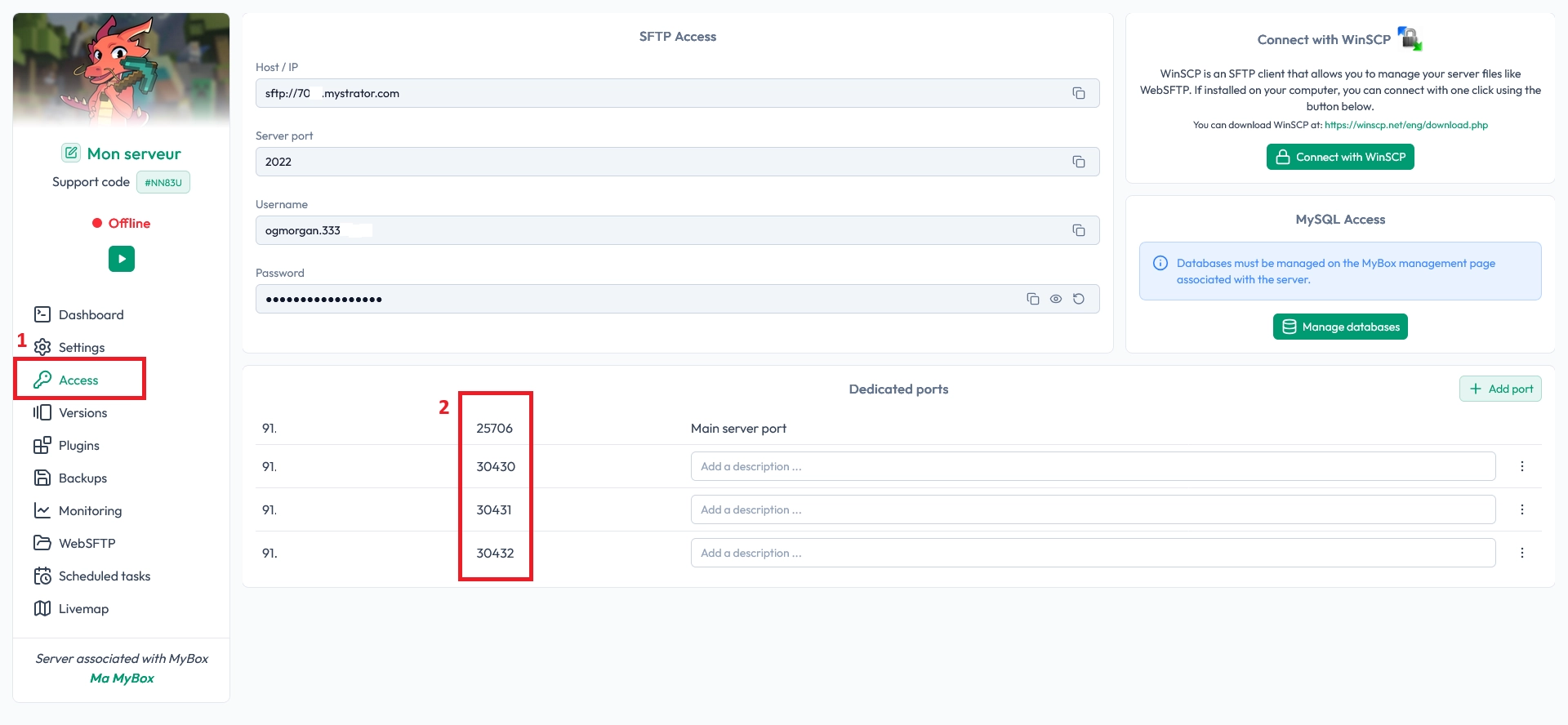
You have 3 or more Dedicated Ports available. Choose one from the list. Then place this port in the configuration file, in the area highlighted in red. Save the changes and restart your server.
And there you go! Your VoiceChat tool is now properly configured.
Don’t forget that you need the Fabric or Forge version installed on your client if you want to be able to use voice chat on a server that uses a Spigot, Paper, or Bukkit version.
Have a great day and have fun!