



 MineStrator
Hello and welcome to this tutorial that will teach you how to install plugins and mods on your server.
Before we begin, I assume you already know how to use an SFTP software such as WinSCP or FileZilla. If that’s not the case, follow this tutorial first: our forum guide: manage your server with WinSCP
Next, it’s essential that your server is running on Spigot, Paper, or other compatible alternatives in order for plugins to work. The best way to make sure is to check that when your server starts, a plugins folder is automatically created (if it doesn't already exist).
1 - Downloading Plugins
The first step is to download the plugins of your choice. You have two main sources (some plugins are on Spigot but not Bukkit, and vice versa):
From the Spigot site at this address: SpigotMC resources
From the Bukkit site at this address: the Bukkit plugin catalog
Note: Some plugins come compressed in an archive (a .zip file), so in those cases, you’ll need to extract the contents of the archive to get the .jar file(s) inside. A plugin is usually a .jar file — with very rare exceptions.
For example, my server runs Spigot version 1.12.2 and I want to install WorldEdit. So I’ll search for WorldEdit on the Bukkit website: WorldEdit on Bukkit
In the “Files” tab, I make sure to download the version compatible with my server version. In my case, since my server is 1.12.2, I download WorldEdit version 6.1.9.
Always make sure the version of the plugin you’re downloading is compatible with your server’s Minecraft version.
2 - Uploading Plugins to Your Server
Now that you’ve downloaded your plugins, connect to your server via SFTP. You should see a plugins folder.
If it’s not there, your server may not be properly set up to support plugins, or it hasn't been started at least once yet (check the prerequisites mentioned at the beginning of this tutorial).
If the plugins folder is there, simply upload your plugins to it (you can drag and drop or use copy/paste with a tool like WinSCP).
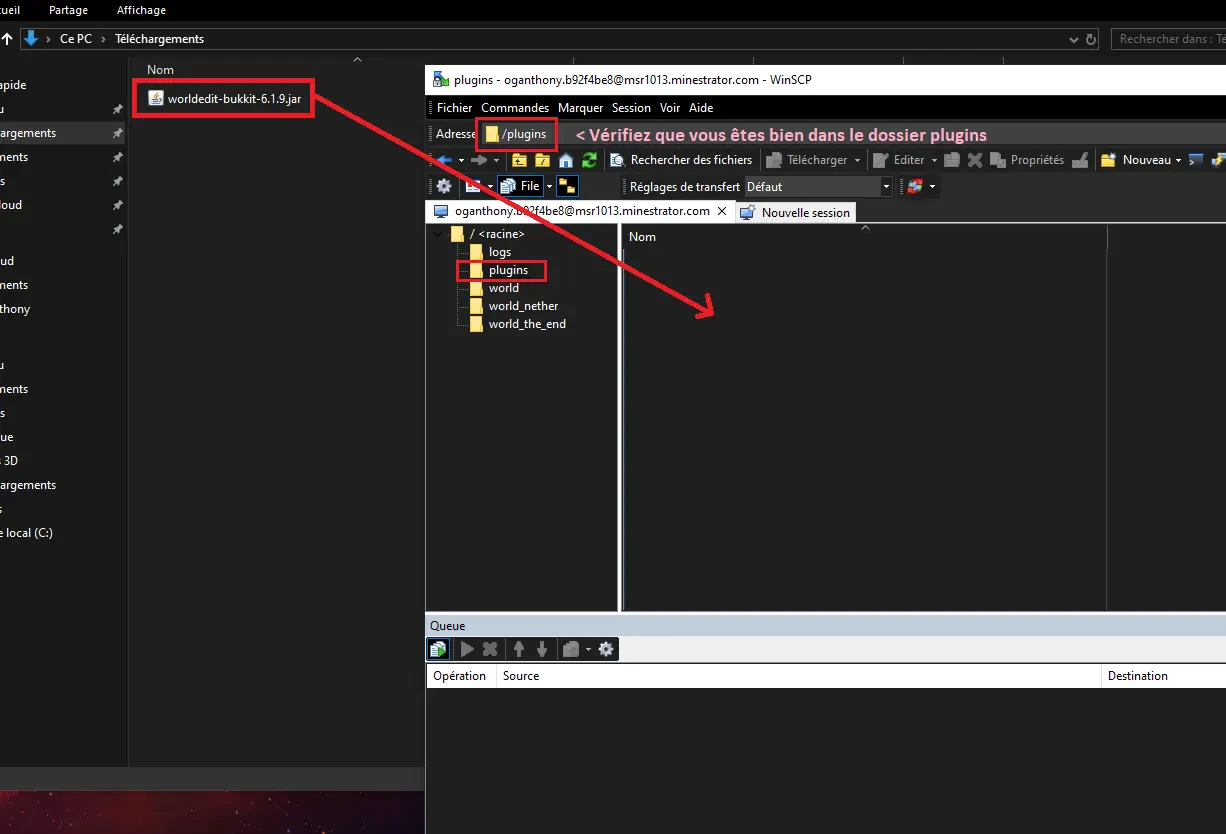
Once your plugins are on the server, all you have to do is start the server and check if they are loaded during the server's startup.
In my case, WorldEdit is correctly loaded, as indicated by the line:
> [INFO]: [WorldEdit] Enabling WorldEdit v6.1.9;caf0ad9
It also appears in green when I run the /plugins command on the server (a plugin shown in red means it failed to load properly and won’t work).
You can also use the automatic plugin installer available with all paid MineStrator plans. The listed plugins come from the Spigot site and can be installed with just one click!
You can find a full video tutorial here (french): youtu.be/ycLEkLCuNf8
This is the end of the tutorial! Feel free to join the MineStrator Discord if you need help installing your plugins.
Have fun !