



 MineStrator
Palworld has won over millions of players since its early access launch in 2024, and Pocketpair's title keeps growing as it heads toward its full 1.0 release on July 10, 2026. This open-world survival game, where you capture and work alongside creatures called Pals, takes on a whole new dimension in multiplayer. Building a base, exploring dungeons and fighting bosses with your friends is exactly what a dedicated server makes possible.
If you want to create a Palworld server to play with your community or a group of friends, you are in the right place. This guide walks you through it step by step, from picking a plan to advanced server configuration. You will find everything you need to launch, configure and optimise your dedicated Palworld server.
Good news: with MineStrator, the entire process happens from a web interface, with no command line at all. Whether you are a beginner or an experienced player, your server will be online in minutes.
Why host your own Palworld server?
Palworld has a built-in multiplayer mode, but it is limited to 4 players in co-op through the invite system. To go beyond that limit, a dedicated server is essential. It is the option most communities choose when they want to play together over the long term.
With a dedicated server, you keep full control over your world. You decide who can connect, you set the game rules, and you get a persistent world that stays online 24/7 even when you are offline. Your friends can connect and keep playing at any time, without you needing to be online.
It is also the only way to host up to 32 players at once, the official limit of the Palworld dedicated server. A dedicated server also lets you fully customise the gameplay settings: difficulty, drop rates, progression speed, day and night cycle, and much more.
If you are torn between hosting it yourself and going through a provider, take a look at our comparison of self-hosting vs renting a game server. In short: self-hosting requires a dedicated machine, a stable connection and technical skills, while a host like MineStrator handles the whole process for you.
Which plan should you pick for a Palworld server?
The plan you choose depends mainly on how many players you expect to host. Palworld is a resource-hungry game, especially as bases grow and the number of captured Pals increases. Unlike lighter games, Palworld loads every active structure and creature into memory, which can use RAM quickly.
Recommendations by player count
For a small group of 2 to 4 players, a MyBox 8 with 8 GB of RAM offers comfortable performance. It is the ideal plan to start out and enjoy Palworld with friends without worrying about performance.
If you are aiming for 4 to 16 players, go for a MyBox 12. With 12 GB of RAM, your server will handle more structures, more active Pals and more simultaneous players with no noticeable slowdown. It is the most popular choice for mid-sized groups.
For larger communities between 16 and 32 players, a configuration with 16 GB of RAM or more will be needed. Keep in mind that performance varies with in-game activity: a server with 20 active players all building at once is more demanding than a server of 30 players where half are simply exploring the world. At that point, a plan from the MyBoxPerf range is the way to go.
💡 Tip: for a detailed look at memory sizing, read our guide on configuring your Palworld server to fine-tune performance and gameplay.
Dedicated resources, no surprises
At MineStrator, every MyBox comes with dedicated resources. The RAM and CPU allocated to your server are not shared with other users. You get exactly what you pay for, with no performance swings caused by a neighbour's load. That is crucial for a game as demanding as Palworld, where stable performance makes all the difference.
Create your Palworld server step by step
Setting up a Palworld server on MineStrator requires no particular technical skills. Everything happens from the MineBoard panel, the management interface for your servers. Here are the four steps to go from zero to a working server.
Step 1: order your MyBox
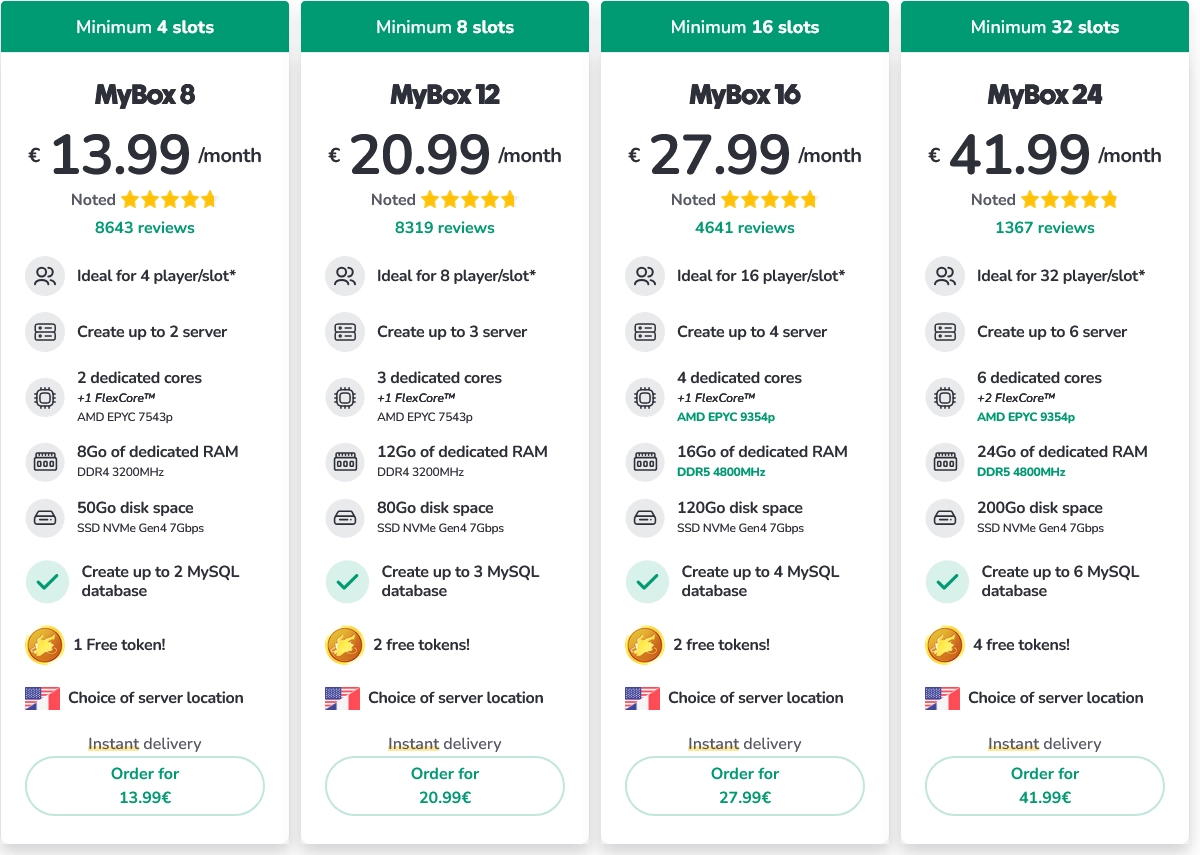
Head to the Palworld hosting page and select the MyBox plan that fits your needs (MyBox 8 for a small group, MyBox 12 for a larger community). Provisioning is almost instant after payment. Your MyBox is available from your panel as soon as the order is confirmed.
Step 2: create your Palworld server
From your MineBoard panel, open your MyBox and create a new Palworld server by selecting it in the list of available games. The official dedicated server is installed automatically with the latest stable version. No files to download manually, no SteamCMD command to run. The full install usually takes less than a minute.
Step 3: start the server
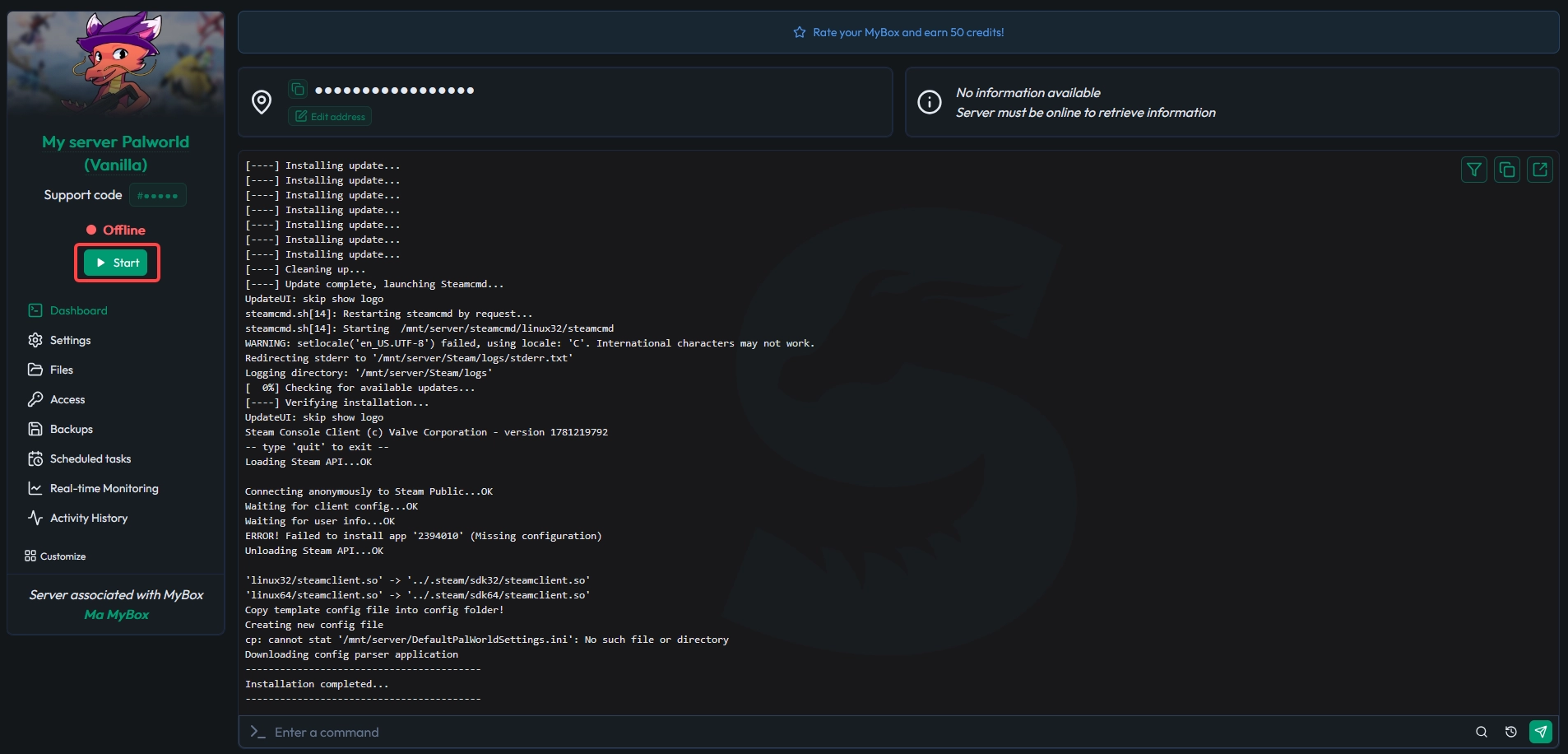
A single click on the start button launches your server. The first launch can take one to two minutes while the configuration files are generated automatically. Once the server is online, note the IP address and port shown above your console in the Dashboard tab of your server, so you can connect from Palworld in the next step.
Step 4: connect to the server

In Palworld, go to the "Join multiplayer game" menu. Enter the IP address and port shown on your panel, above your console in the Dashboard tab, then connect. Share these details with your friends so they can join you. You can also set a password so that only invited players can access your world.
Configure your Palworld server
Once your server is online, you will probably want to adjust some settings to tailor the experience. Palworld offers many configuration options that let you adapt the gameplay to your style.
The PalWorldSettings.ini file
All of your server's gameplay configuration goes through the PalWorldSettings.ini file. This file is accessible directly from the file editor built into MineBoard. You can edit it without any external software. Among the most common settings, you will find:
Difficulty and survival: damage dealt and taken by players, hunger and thirst rates, difficulty of wild Pals. You can make the adventure tougher or, on the contrary, ease survival for a more relaxed mode.
Progression: experience multiplier, item drop rates, egg hatching speed, Pal capture rate. Ideal for speeding up or slowing down progression to match your group's preferences.
World: day and night cycle, resource spawn frequency, Pal respawn timing. These settings directly shape the pace of the game and the availability of resources.
💡 Tip: you can use the Visual mode to edit PalWorldSettings.ini for easier modifications.
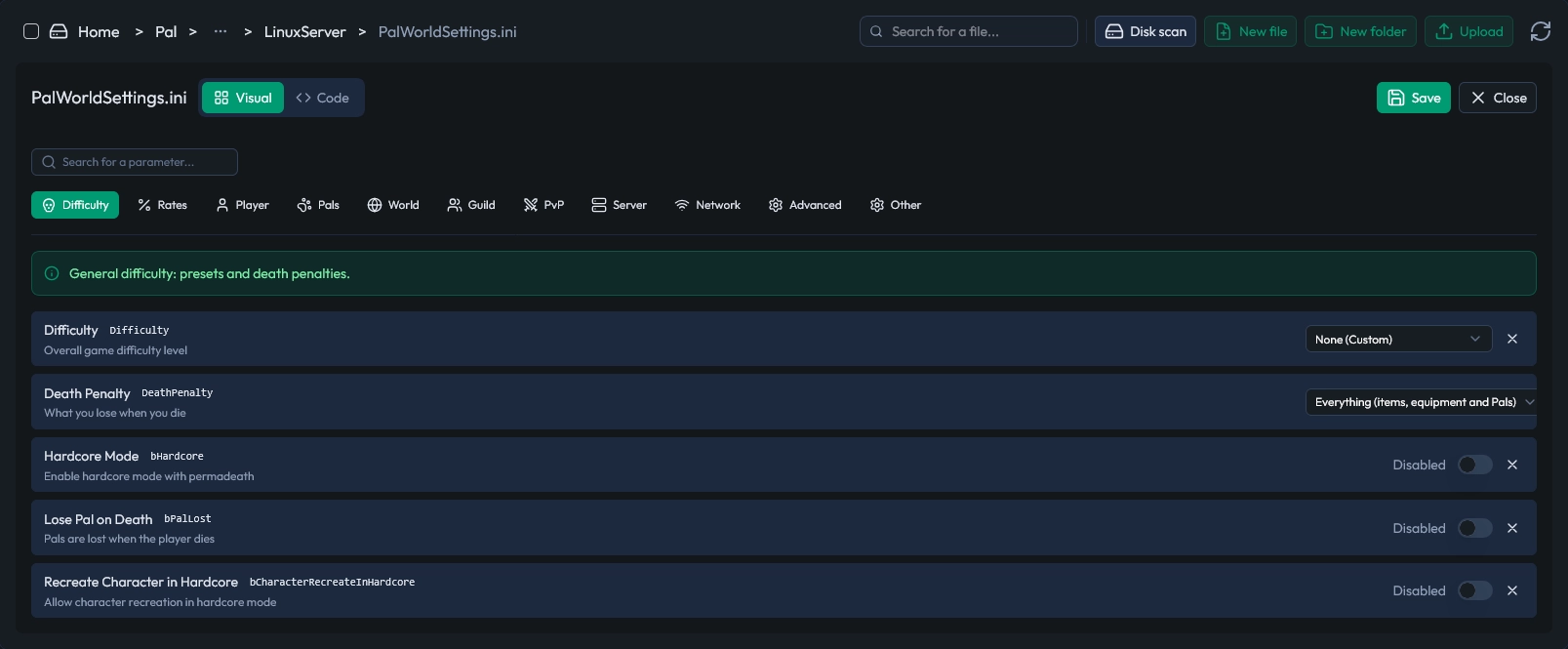
The visual editing mode
🚨 Important: a Palworld server rewrites its configuration data when it stops. Any change made while the server is online won't stick. You must first stop the server, change the settings and start it. It is not possible to change the settings while the server is online and simply use the restart button.
Player and permission management
As the server administrator, you can set a password to restrict access. Only players with the password will be able to join your world. The admin password is also configured in the server settings and gives you access to the in-game admin commands (ban a player, send announcements, teleport a player, and more). For the full list, see our complete guide to Palworld commands.
🚨 Important: store your admin password somewhere safe. Without it, you will not be able to use the in-game admin commands. It cannot be recovered except by editing the configuration file.
Backups and maintenance
A game server represents hours of progress for you and your players. Protecting that data is essential. A lost save can mean dozens of hours of gameplay gone for your whole community.
Automatic backups
MineStrator offers an automatic backup system configurable from the MineBoard. You can set the backup frequency to suit your needs: every hour, every 6 hours, or once a day. If something goes wrong (world corruption, griefing, a mistake), you simply restore an earlier backup in a few clicks from the interface.
Palworld also generates its own internal saves at regular intervals. It is recommended to keep both systems active for maximum safety. In case of a server crash, you will always have a recent restore point.
Server updates
Pocketpair releases regular updates for Palworld, bringing bug fixes, balancing and new content. From the MineBoard, updating your server comes down to one click on the reinstall button. Your saves and configurations are preserved during the update.
Remember to check version compatibility: your players must run the same game version as the one installed on the server in order to connect. It is a good idea to warn your community before an update to avoid temporary incompatibilities.
Optimise your server's performance
Palworld is a demanding game, and your server's performance can fluctuate with player activity. Here are a few best practices to keep the experience smooth over time.
Limit the world's load
Heavily developed bases with many Pals assigned to tasks use more server resources. If you notice slowdowns, you can lower the maximum number of Pals per base in the configuration, or encourage your players to spread out their builds.
Likewise, a server with many structures packed into a small area is more demanding. Spreading bases across the map helps smooth out the load. It is a good habit to share with your players from the start of the game to avoid performance issues later.
Regular restarts
As with most game servers, a daily restart frees the accumulated memory and keeps performance optimal. You can schedule these restarts from the MineBoard so they happen during off-peak hours, for example at 5 a.m. when no one is connected.
💬 Good to know: if your server starts to show signs of slowdown with your current player count, it may be time to move up to a higher plan. With MineStrator, changing plans happens without data loss and takes effect immediately.
Go further with your MyBox
Your MyBox is not limited to a single server. One of the advantages of this format is the flexibility it gives you to manage your gaming experience.
For example, you can manage several servers on one MyBox and switch from Palworld to another game at no extra cost. This is especially handy if your community plays several titles in rotation. Your Palworld saves are kept even when you temporarily switch to another game.
Frequently asked questions
How much RAM do you need for a Palworld server?
For 2 to 4 players, a MyBox 8 (8 GB of RAM) is enough. If you plan to host between 4 and 16 players, choose a MyBox 12 or MyBox 16 to guarantee stable performance.
Do you need to open ports to play on a MineStrator Palworld server?
No. At MineStrator, ports are configured automatically. You have no port-forwarding to manage on your home router.
What is the maximum number of players on a Palworld server?
The official Palworld dedicated server supports a maximum of 32 simultaneous players. Beyond 16 players, plan for at least 16 GB of RAM to maintain good performance.
How do you change the difficulty or XP rates on a Palworld server?
All configuration is done through the PalWorldSettings.ini file, accessible from the MineBoard panel. You can adjust the difficulty, drop rates, XP multiplier and many other settings there.
Can you switch games on your MyBox if you stop playing Palworld?
Yes. With a MineStrator MyBox, you can switch games for free at any time from the panel. Your resources stay the same, only the installed game changes.
Are Palworld server backups automatic?
Yes. MineStrator offers automatic backups configurable directly from the MineBoard panel. You can set the frequency and restore a backup in a few clicks.
Conclusion
Creating a Palworld server in 2026 is within everyone's reach with the right tools. On MineStrator, the whole process comes down to a few clicks: pick a plan, select the game, start the server. No command line, no complex network configuration, no port-forwarding.
With dedicated resources, automatic backups and a complete management panel, you can focus on what matters: capturing Pals and building your world with your friends. And if your needs grow, your plan can grow with you without losing your progress.
Ready to get started? Launch a server with the free trial, no credit card required, and create your Palworld server in minutes.