

 MineStrator
Your Minecraft server won’t start and you’re staring at an EULA message? Don’t panic, it’s a one-minute fix. To run any Minecraft server in 2026, you must accept the Minecraft EULA (End User License Agreement), which sets the rules for using Minecraft server software.
In this quick tutorial, you’ll learn where to find the EULA, how to edit the eula.txt file, and how to confirm the change so your server can boot normally.
You can read the official EULA here: Minecraft EULA (official page). For more server setup tips, you can also browse our MineStrator blog articles.
Accept the Minecraft EULA on your server
To accept the Minecraft EULA, you simply need to edit one file in your server directory. You can do this through your panel’s Files tab.
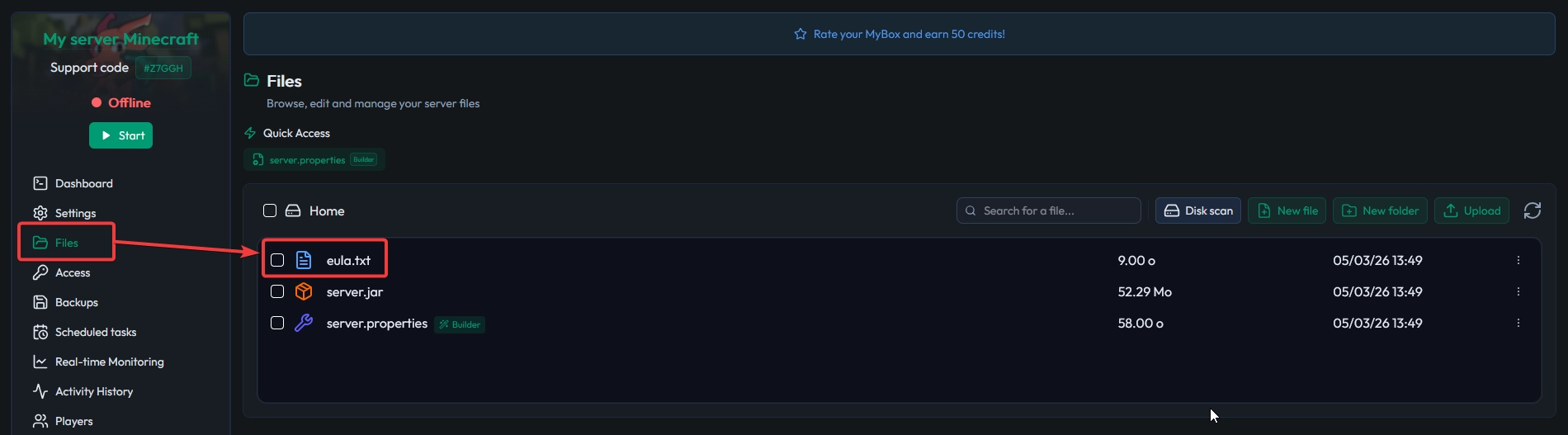
Now locate the file named eula.txt and open it. Inside, change the value from eula=false to eula=true, then save the file.
⚠️ Warning: Write
eula=trueexactly, then save. If the file stays onfalse, your server will keep refusing to start.

Once saved, restart your server. It should now start normally and you’ll be ready to play.
💡 Tip: If your server still won’t boot, check the console logs for the exact error message before changing other settings.
Frequently asked questions
Where is the eula.txt file located?
You’ll find eula.txt in your server’s root folder, accessible via the Files tab in the panel. If it’s missing, start the server once to generate it.
Do I need to accept the EULA for every server?
Yes. Each separate Minecraft server installation has its own eula.txt file, so you’ll need to set eula=true for each server you run.
Can I accept the EULA from the server console?
No. The EULA is accepted by editing eula.txt in your server files. After saving, restart the server to apply the change.
Conclusion
That’s all it takes: edit eula.txt, switch eula=false to eula=true, save, and restart. Your Minecraft server is now allowed to start and you can get back to building (or grief-proofing).
Don't have a MyBox yet? Get one here! Wanna test first, Try MineStrator free for 12 hours, no credit card required.