Your Minecraft server list looking a bit… default? Your server icon and MOTD (the message shown under your server name) are the first things players see in multiplayer.
In this 2026 guide, you’ll learn how to change your Minecraft server MOTD and server icon on MineStrator: either directly from the MineBoard (fastest), or manually via SFTP (more control). Let’s make your server look as good as it plays.
Change your Minecraft server MOTD and icon
A Minecraft server MOTD is the short text displayed in the multiplayer server list, under your server name. Your server icon is the small 64x64 image shown next to it, and it’s basically your server’s “profile picture”.
On MineStrator, you can update both in a few clicks from the panel. If you prefer doing it manually, you can also upload the icon file via SFTP.
Edit MOTD and icon with MineBoard
You can easily change your server MOTD from your server settings in the MineBoard. On your pod page, open the Settings tab, then fill in the MOTD field with the text you want.
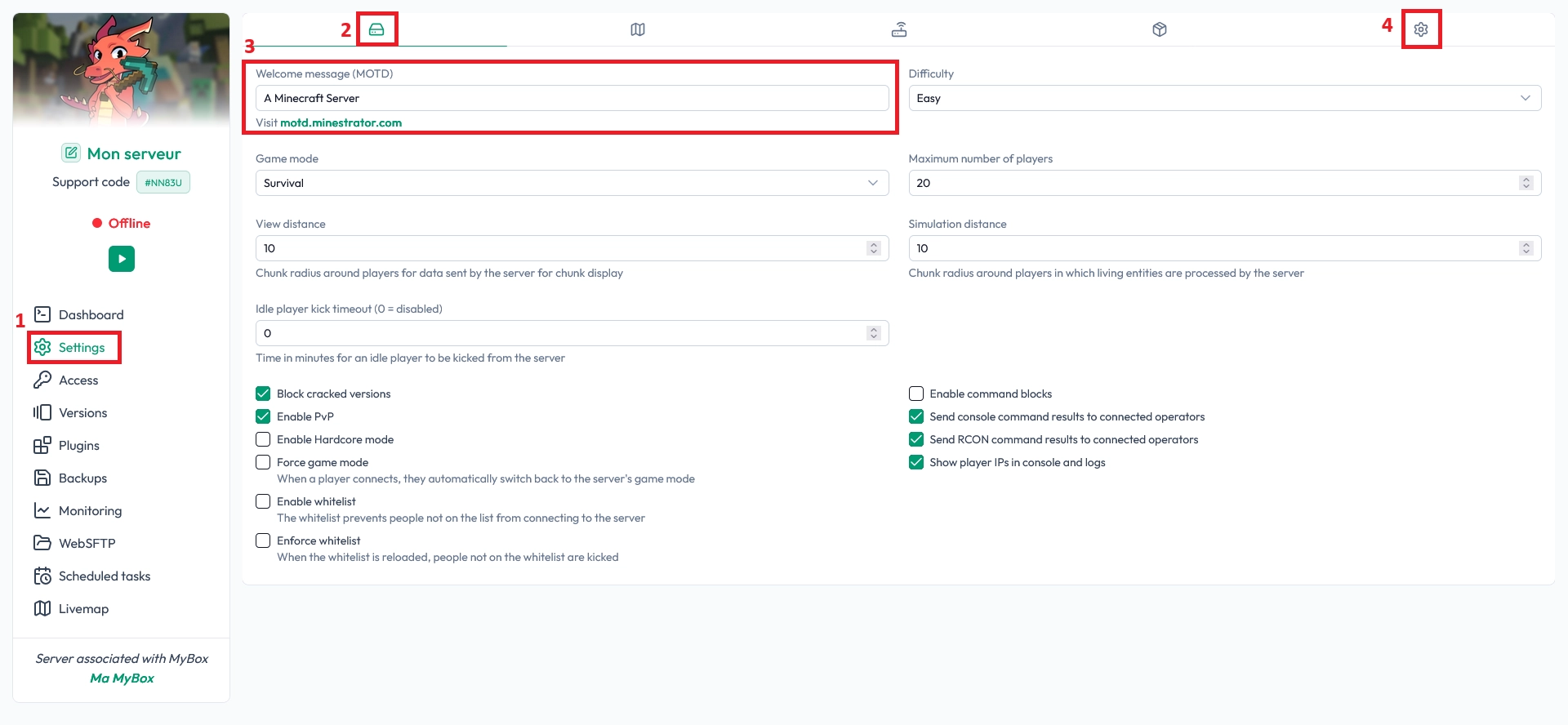
If you want colors and formatting, you can generate a styled MOTD using a tool like minecraft.tools MOTD generator. Copy the result into your MineBoard MOTD field, then save your changes.
💡 Tip: Keep your MOTD short and readable. A clean two-line message usually looks best in the server list.
After changing the MOTD, restart your server so it displays correctly in the multiplayer list.
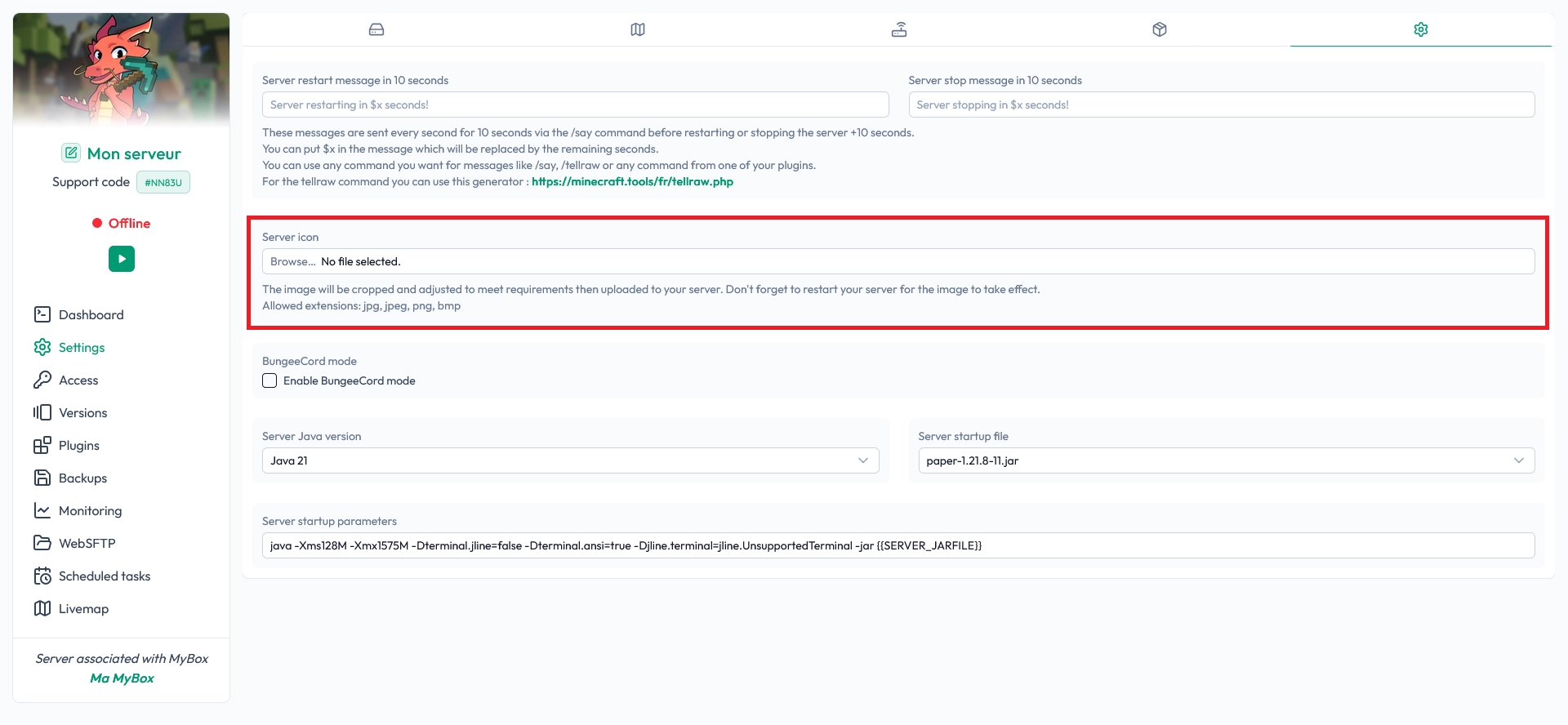
To change the server icon, click the cog on the right to open the icon settings. Upload the image you want, and MineBoard will handle the adjustments for you.
📝 Note: You also need to restart your server after uploading a new icon for it to appear correctly.
Change the server icon via SFTP
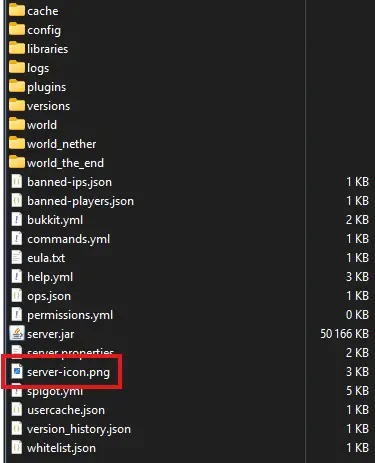
If you want to set the icon manually, upload the icon file directly to your Minecraft server. The file must be placed at the server root, in the same folder as server.properties.
To make sure Minecraft displays it correctly, your icon must follow these rules:
The file must be a PNG (no JPEG or GIF).
The image must be exactly 64x64 pixels.
The filename must be exactly server-icon.png.
⚠️ Warning: If the size or filename is wrong, Minecraft will silently ignore the icon and keep the default one.
Once uploaded, restart your server to apply the new icon.
Questions frequentes
Why doesn’t my new MOTD show up?
Most of the time, the server simply needs a restart. Also double-check that you saved the change in the MineBoard, and that your MOTD doesn’t contain unsupported formatting codes.
Why doesn’t my server icon appear in the server list?
Restart the server first. If you uploaded it via SFTP, verify it is named server-icon.png, placed at the root (next to server.properties), and is exactly 64x64 in PNG format.
Can I use a larger image for better quality?
No. Minecraft only supports a 64x64 PNG for the server list icon. If you upload a bigger image, it won’t display correctly unless it’s resized to 64x64.
Conclusion
You now know how to update your Minecraft server MOTD and server icon on MineStrator, either through MineBoard or manually via SFTP. With a clean MOTD and a recognizable icon, your server instantly looks more professional in the multiplayer list.
Need more guides to setup your server? Check all our guides, and you can also check the FAQ for common issues. Don’t have a server yet? Try it free for 12 hours, no credit card required!

 11 March 2026
  Enjoy 10% off your first month of server with MineStrator using the code ACTU10!