
Minecraft server lagging, rubberbanding, or randomly kicking players? Before blaming the host (or your PC), run an MTR diagnosis. It’s one of the fastest ways to see where your connection is getting messy.
MTR (My Traceroute) combines ping and traceroute to measure latency and packet loss on every hop between you and a remote server. In 2026, it’s still the go-to tool for proving whether the issue is local, ISP-related, or happening closer to the datacenter.
In this guide, you’ll learn what an MTR is, how to run it on Windows/macOS/Linux, and how to read the results so support can help you faster.
What an MTR diagnosis is
An MTR diagnosis is a network test that sends repeated probes to map the route from your device to a server. It shows each intermediate router (hop), the average response time, and whether packets are being lost along the way.
For a Minecraft server, MTR is perfect when you suspect network issues: high ping spikes, packet loss, or unstable routing. Instead of a single ping value, you get a full picture of the path your traffic takes.
Why run MTR for a Minecraft server
When your Minecraft server feels laggy, the cause isn’t always the server itself. MTR helps you separate “server TPS problems” from “network problems” in a few minutes.
Locate packet loss on the route
Spot latency spikes on specific hops
Provide solid evidence to your ISP or support
Save time during troubleshooting
Compare routes from different locations
💬 Good to know: A simple
pingcan look “fine” while MTR reveals loss or jitter on a specific hop.
Before you start
Make sure you test the right target. Use the server IP or domain only, without the port. For example, use play.yourserver.com and not play.yourserver.com:25565.
For reliable results, run the test while the issue is happening. If the problem is random, do two runs: one when it feels good, and one when it feels bad.
⚠️ Warning: Avoid running MTR over a VPN unless the VPN is part of the problem you’re investigating.
Run MTR on Linux or macOS
On Linux/macOS, you’ll use mtr from a terminal. If it’s not installed yet, install it first using your system’s package manager.
Install MTR on Debian/Ubuntu:
sudo apt-get install mtrInstall MTR on CentOS/RHEL:
sudo yum install mtrInstall MTR on macOS (Homebrew):
brew install mtrThen run MTR (without the port):
mtr your.server.ip.or.domain💡 Tip: Let it run for 1–3 minutes so averages stabilize, then copy the results for support.
Run WinMTR on Windows
On Windows, the easiest option is WinMTR, which provides the same kind of hop-by-hop view with a simple interface.
Download WinMTR from the official page: WinMTR on SourceForge.
Install and launch WinMTR.
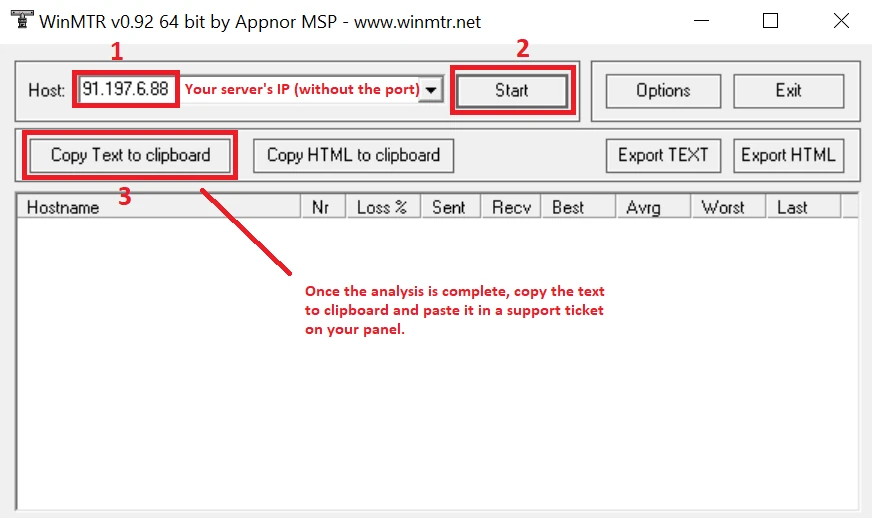
In the Host field, enter the server IP or domain without the port.
Click Start and let it run for 1–3 minutes.
Copy or export the results to share them.
How to read MTR results
MTR output can look scary at first, but you only need a few key indicators. Focus on latency, packet loss, and where the problem starts in the hop list.
Response time (latency): Measured in ms, it shows how long packets take to reach each hop. A sudden jump that stays high on all following hops usually points to a real routing or congestion issue.
Packet loss: The percentage of probes that never returned. Consistent loss on a hop and all hops after it is a red flag.
Traceroute (hops): The hop list shows each router between you and the Minecraft server. The first hop is often your router, and the last hop is the server endpoint.
📝 Note: Some routers deprioritize or block ICMP replies, showing “loss” on one hop while later hops are clean. That’s usually not a real problem.
What to do if you see problems
If you notice high latency or packet loss, look at where it begins. That starting point is often the best clue to who can fix it.
If the issue is on the first hops, reboot your router, try Ethernet, and contact your ISP if it persists.
If the issue starts further away, collect the MTR results and share them with support so they can escalate with the right network details.
🚨 Important: Always include the full MTR output (all hops) and mention the time of the test, ideally in UTC.
Questions frequently asked
How long should I run an MTR test?
Run your MTR diagnosis for at least 1 minute, ideally 2–3 minutes if the issue is intermittent. More samples make averages and loss percentages more reliable.
Should I test the IP or the domain?
Either works, but the domain is often better if your server uses DNS routing. In both cases, do not include the port, because MTR targets the host itself.
Is packet loss on one hop always bad?
No. If one hop shows loss but the following hops show 0% loss and stable latency, it’s usually ICMP rate-limiting. Real problems typically continue on subsequent hops.
Conclusion
An MTR diagnosis is the quickest way to understand why your Minecraft server connection feels unstable. It shows where latency spikes and packet loss start, so you can tell if it’s your network, your ISP, or the route to the server.
If you want help interpreting your results, reach out to our team via Support, or check the most common fixes in our FAQ.

 11 February 2026
  Enjoy 10% off your first month of server with MineStrator using the code ACTU10!