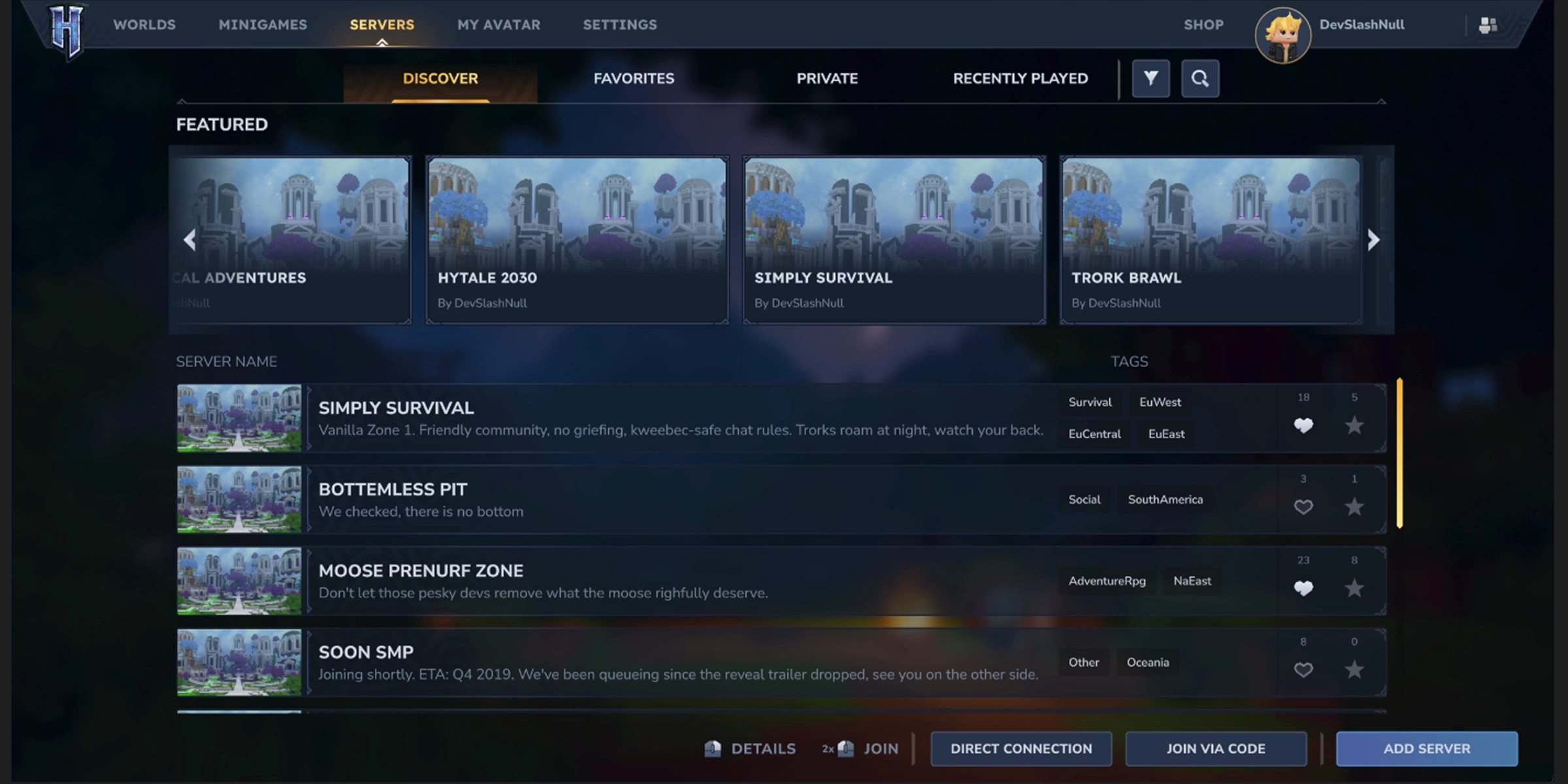
Hytale Update 5 added Server Discovery, an in-game browser that helps players find community servers. If you want your server to show up there, you must certify your Hytale server through your own Hytale account.
This isn’t just admin paperwork. Hytale intentionally requires the server owner to certify the listing, not the hosting provider. Once you understand that separation, most “why doesn’t it work?” moments instantly make sense.
Before you start, make sure you have an active personal Hytale account, a working Hytale server on MineStrator (see this MineStrator setup guide), and access to your client area/panel.
Why certify your Hytale server?
Hytale server certification is the gatekeeper for appearing in Server Discovery, introduced with Hytale Update 5. Without certification, your server is basically “invite-only”: only players who already know the address can join.
Certification also unlocks tags for your listing. Players use those tags to filter the server browser, which means your server can actually be found by the right audience instead of drowning in a giant list.
Finally, favorites matter. When players add your server to their favorites, it’s visible during search and helps newcomers judge activity, even when your regulars are offline.
Why your host can’t certify for you
Hytale clearly separates the hosting provider (a Game Server Provider, or GSP) from the server owner. A GSP like MineStrator runs servers using a shared GSP OAuth key that authenticates all hosted instances and keeps them reachable.
But certification requires a token tied to your personal Hytale account. That’s the point: certification proves ownership, and ownership belongs to you, not the host. This protects customers from a provider listing (or relisting) servers without permission.
So the real prerequisite is simple: you must switch your server to your own account using MineStrator’s self-login feature.
📝 Note: Certification doesn’t give any in-game perks. It only allows your server to appear in Server Discovery.
Step 1: Enable self-login on MineStrator
Self-login moves your server from MineStrator’s GSP OAuth session to your own Hytale session. This step is mandatory: if you skip it, everything else will fail later.
Open your server panel. Go to Settings, then Authentication, and click Connect my Hytale account.
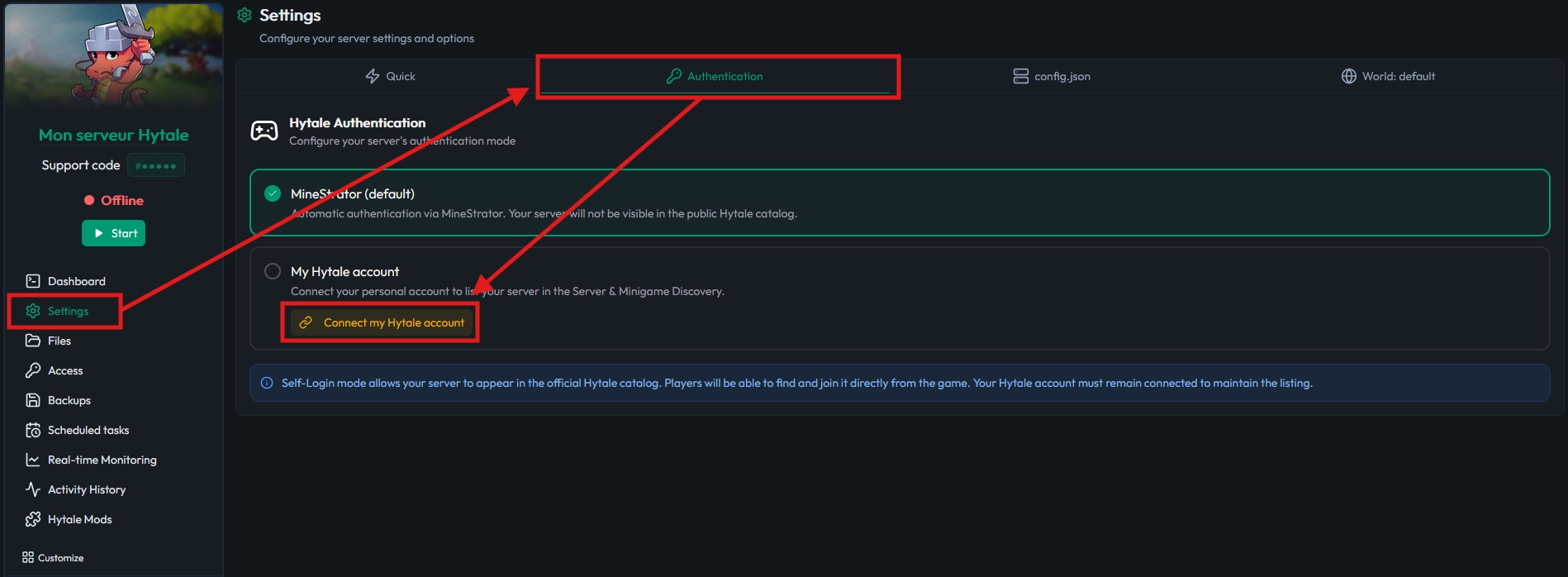
You’ll get a temporary OAuth code. Click the provided link and enter that code on the Hytale website.
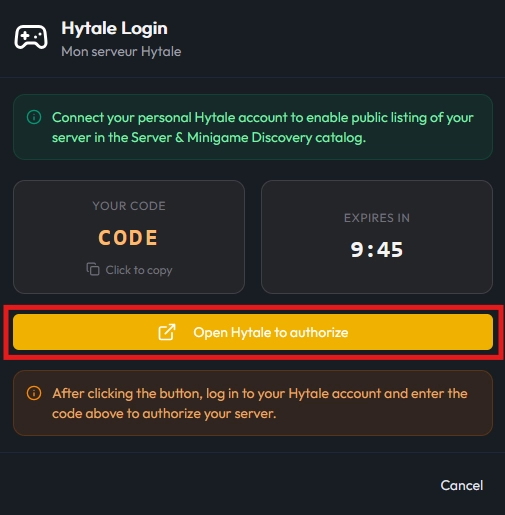
Double-check the code shown on MineStrator matches the one shown on Hytale.com. If it matches, confirm it (checkbox) and validate.
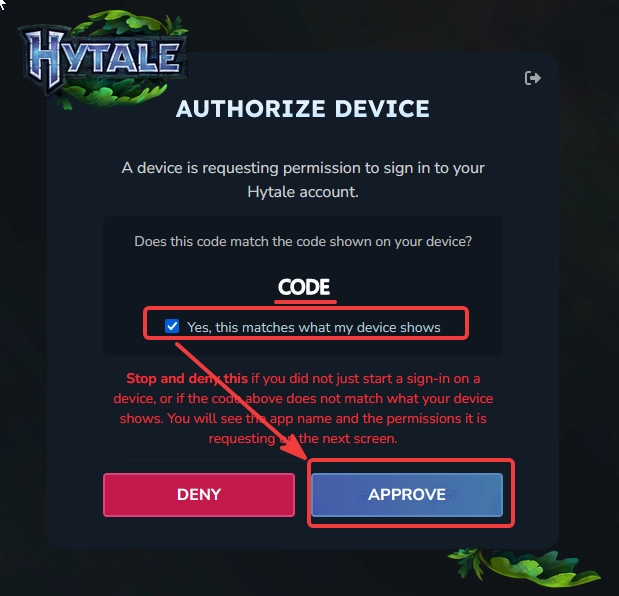
Hytale may ask for your password again even if you’re already logged in. Once it’s done, your MineStrator panel updates to show the account is linked.

Restart your server so it boots using your personal session. Without the restart, Hytale will still see the old session and refuse certification.
⚠️ Warning: If self-login isn’t enabled on the owner account, you won’t be able to certify the server. The next steps won’t work.
Step 2: Submit your server on Hytale.com
Once self-login is active, open the official listing form on your Hytale account: server submission form.
Listed servers must follow stricter rules than private servers, so it’s worth reading the official policies before you hit submit: Hytale server policies.
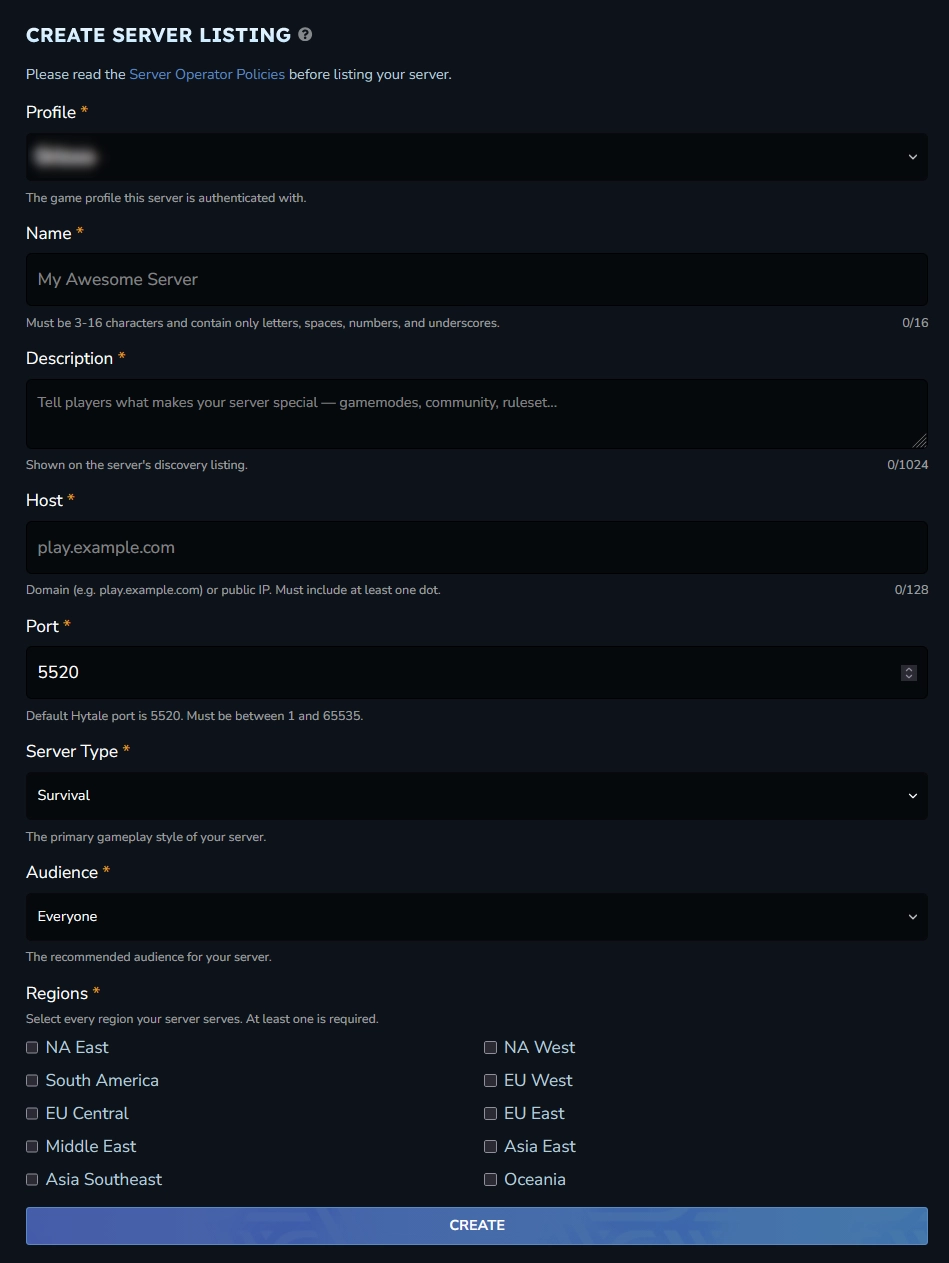
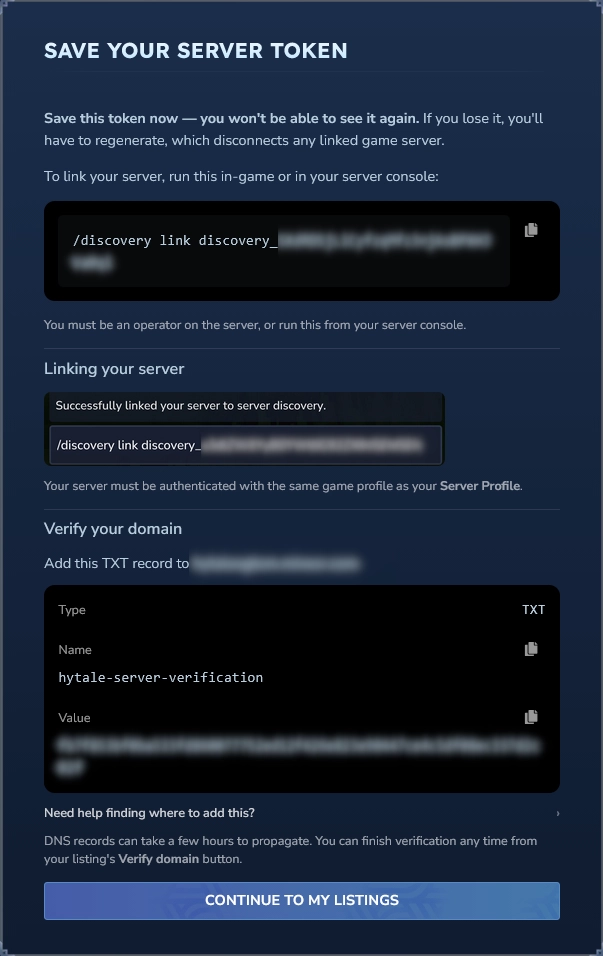
After submitting, Hytale shows a modal with the remaining actions: run a command on the server, publish a DNS TXT record, then verify the domain. Keep that modal open until you finish.
Step 3: Run the in-game certification command
Join your Hytale server using the same personal account you used for self-login. Then run the command provided in the Hytale modal to link your server to Server Discovery.
Use the command format shown by Hytale, for example: /discovery link discovery_xxxxxxx. You must be operator on the server for it to work, whether you run it in-game or from the console.
In your console, you should see: Successfully linked your server to server discovery.
⚠️ Warning: If you get
[DiscoveryService] Discovery heartbeat failed with status code 403, body: session token needs to be from same profile as server, your server wasn’t restarted after enabling self-login. Restart it and try again.
Step 4: Publish the DNS TXT record
Hytale generates a verification token that must be published as a DNS TXT record on the subdomain you declared in Step 2. The workflow depends on whether you use a MineStrator subdomain or your own domain.
Case A: You use a MineStrator subdomain
This is the most common setup. MineStrator can publish the TXT record for you via a dedicated button in the panel.
If you haven’t already, add a subdomain to your server from the Dashboard, above the console.

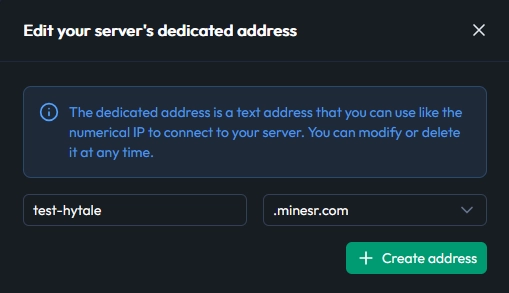
Once the address is set, a certification button appears on the panel.

Paste the token provided by Hytale and validate.
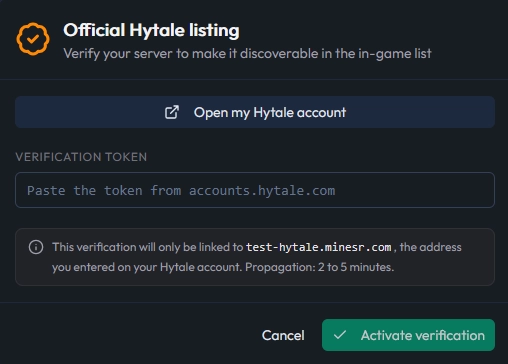
Case B: You use your own domain
If you’re using a personal domain, make sure you followed this guide first: How to Link a Domain Name to a Hytale Server.
When you declare your own domain on Hytale, you must publish the TXT record at your DNS provider (OVH, Cloudflare, Gandi, etc.). MineStrator can’t edit your external DNS zone.
Create a TXT record named hytale-server-verification and set its value to the token provided by Hytale. The token is a hexadecimal string (letters a to f and digits 0 to 9).
🚨 Important: The subdomain declared on Hytale must be exactly the one where the TXT record is published. Any mismatch (typo, different subdomain) will block certification.
Step 5: Verify the domain on Hytale
Go back to Hytale.com. In the “Save your server token” modal, click CONTINUE TO MY LISTINGS to access your server listing.
Your server should appear as pending verification. Start by clicking VERIFY DOMAIN to run the domain check.
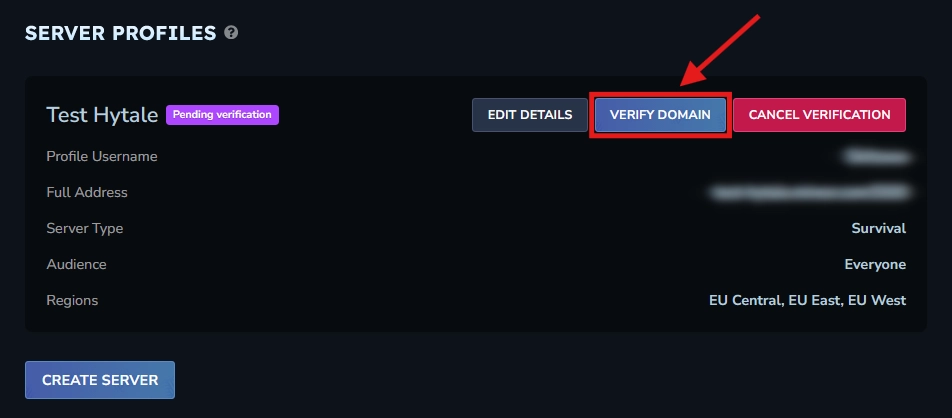
Make sure Step 4 is completed first, then wait a few minutes for DNS propagation. Once ready, click VERIFY to launch the verification.
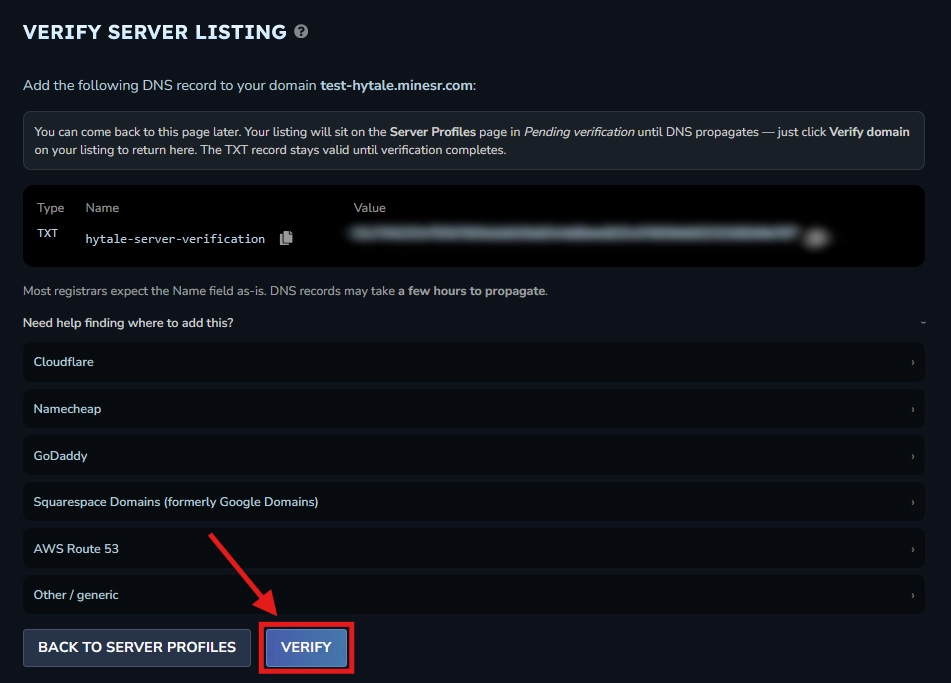
If the TXT record is visible and your domain is configured correctly, you’ll briefly see a success message, then you’ll be redirected to your server list.
The status should change from Pending verification to Awaiting review.

That’s it. Now you just wait for Hytale moderation to approve the listing.
Fix common certification failures
Most certification failures come from a small set of repeatable mistakes. Check these items in order to save time.
Confirm self-login is enabled in your MineStrator panel.
Confirm the Hytale subdomain matches the TXT subdomain exactly.
Confirm the TXT record has propagated (for example with dnschecker.org).
If you’re still stuck, open a ticket and tell us which step fails and what message you see. You can contact us via Support.
💡 Tip: Always check DNS propagation before clicking “Verify domain”. It prevents failing the check just because the TXT record isn’t live yet.
Frequently asked questions
What is Hytale Server Discovery certification in 2026?
Hytale Server Discovery certification is an ownership verification required to list a community server in the in-game Server Discovery browser (added in Hytale Update 5). Certification links the server to a personal Hytale account, not the hosting provider, and unlocks listing features like tags and visibility in search. Without certification, players can only join if they already know your server address.
How do you certify a Hytale server for Server Discovery?
A Hytale server is certified by linking it to your personal Hytale account, then verifying the server and domain in Hytale’s listing flow. The 5-step order is: 1) enable self-login (personal account) on MineStrator and restart the server, 2) submit the server on Hytale.com, 3) run the provided command (for example /discovery link discovery_xxxxxxx) as operator, 4) publish the DNS TXT token on the exact subdomain, 5) click “Verify domain” to move to “Awaiting review”.
Why can’t a hosting provider certify my Hytale server?
A hosting provider can’t certify a Hytale server because certification requires a token tied to the server owner’s personal Hytale account, not the provider’s shared GSP OAuth session. This separation prevents a provider from listing or relisting servers without the customer’s consent. At MineStrator, the required fix is enabling self-login so the server boots under your personal Hytale session, then restarting before running the discovery link command.
What DNS TXT record is needed for Hytale certification?
Hytale certification requires publishing a DNS TXT record on the exact domain/subdomain used in your Hytale listing, with the verification token Hytale generates. For a personal domain, create a TXT record named hytale-server-verification and set its value to the hexadecimal token (a to f, 0 to 9) at your DNS provider (Cloudflare, OVH, Gandi, etc.). For a MineStrator subdomain, MineStrator can publish the TXT record via the panel button after you set the subdomain.
Why does Hytale certification fail with a 403 heartbeat error?
The 403 heartbeat error usually happens because the server is still using the hosting provider session instead of your personal Hytale profile. The common message is: “Discovery heartbeat failed… session token needs to be from same profile as server,” which typically means the server wasn’t restarted after enabling self-login. In MineStrator tests, restarting after self-login fixes most 403 cases, then rerunning the /discovery link command completes the link.
Conclusion
To certify your Hytale server for Server Discovery in 2026, follow five steps in order: enable self-login, submit the listing on Hytale.com, run the link command, publish the DNS TXT record, then verify the domain. The biggest trap is simple: the subdomain must match perfectly between your listing and your TXT record.
Want to spin up a test server before going public? You can try it free for 12 hours (no credit card required) and validate your setup without stress. For more Hytale help, see how to host a Hytale server for free and how to set yourself as server operator before you certify.

 10 June 2026
  Enjoy 10% off your first month of server with MineStrator using the code ACTU10!